










For years, the iPad was a double-edged sword: a beautiful piece of technology that was often too “fidgety” for seniors with tech-anxiety or cognitive decline. In 2026, that has changed. Tucked away in your settings is a feature called Assistive Access – a total transformation of the iPad interface that makes it simpler, safer, and essentially “scam-proof.”
If you’re a caregiver looking to bridge the gap and reduce social isolation without the monthly subscription fees of a dedicated senior tablet, this is your gold mine.
What is iPad Assistive Access for Seniors?
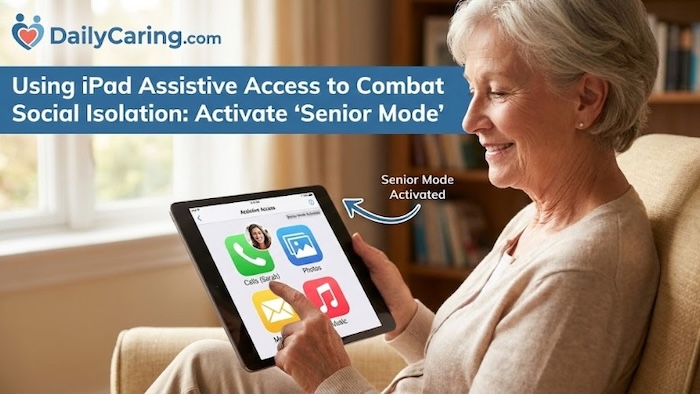
Think of it as a “digital safety net.” When enabled, it replaces the standard, cluttered Home Screen with a simplified grid or list of massive icons. It restricts accidental swipes, removes confusing pop-ups, and keeps the focus entirely on the person.
- Focused Features: You choose exactly which apps appear (e.g., just FaceTime, Photos, and Messages).
- Visual-First Design: Onscreen items use large images and high-contrast labels, perfect for those with vision loss or memory impairment.
- Safety Lock-Down: Only pre-approved contacts can call or message the device, effectively silencing the growing wave of AI-generated senior phone scams.
iPad Assistive Access is a Game-Changer for Caregivers – Here's Why:
While managed services like the GrandPad are excellent for those who want zero tech-support burden, the iPad offers three unique advantages for families willing to spend 20 minutes on setup:
1. Scam-Proof Communication
In 2026, AI-generated voice clones and sophisticated phishing are the #1 concern for families. Assistive Access offers a level of security that standard tablets cannot match.
- Trusted Contacts Only: You can set the iPad to only allow incoming calls and messages from people in the senior's contact list.
- No Web Browsing Risk: By excluding the Safari app from the simplified interface, you eliminate the risk of “pop-up” scams that trick seniors into calling fake support numbers.
- Simplified Communication: Instead of a complex keyboard, seniors can send video selfies or use a simplified emoji board, reducing the frustration that often leads them to seek “help” from unknown sources.
2. Reminiscence Therapy: A Digital Photo Bridge
Social isolation is often combated through shared memories. The iPad's Retina Display makes it the premier choice for this specific type of engagement.
- Shared Albums: Create a dedicated “Family” album on your own iPhone.
- Automatic Updates: Every time a grandchild adds a photo to that album, it automatically appears on the senior’s iPad home screen under a massive “Photos” icon.
- The “Digital Frame” Effect: Even when not in use, the iPad can act as a high-definition digital photo frame, providing constant visual connection to loved ones.
3. Health App Integration
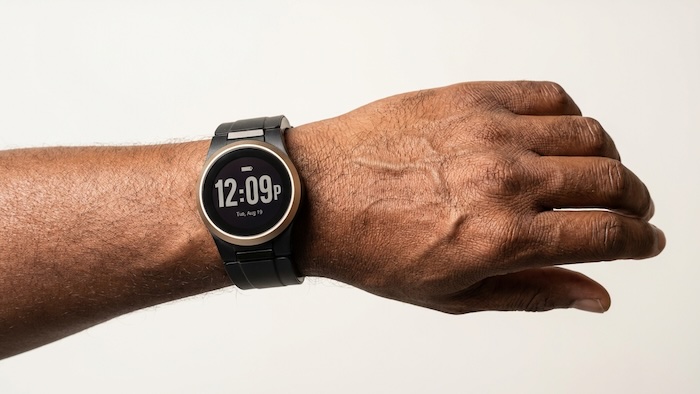
Unlike budget tablets, the iPad can sync with the senior's Apple Watch or medical apps like MyChart, allowing you to monitor heart health, sleep, and medications remotely.
Comparing the Top Senior Tablets of 2026
To help you decide which “digital lifeline” fits your budget and needs, here is a breakdown of the four major players.
Professional hardware with a simplified mode. Perfect for families who want the best screen quality with $0 monthly fees.
Fully managed service. Includes 24/7 live concierge support and a built-in cellular data plan.
Focuses on medical monitoring. Syncs with vitals monitors and alerts caregivers to missed meds.
Entry-level tablet featuring hands-free Alexa. Great for basic video calls and Kindle reading.
To find the right digital lifeline, you have to weigh the iPad against the three other major players in the 2026 market:
- GrandPad: The “gold standard” for those who want zero tech-support burden. It includes 24/7 live concierge support and its own cellular data.
- Claris Companion: A specialized hub for remote health monitoring, syncing with vitals monitors and medication dispensers.
- Amazon Fire HD 10: The budget-friendly starter ($130–$150) featuring hands-free Alexa for seniors with limited dexterity.
Step-by-Step: Setting Up Your iPad for Seniors
To make this work, the iPad must be running iPadOS 17 or newer (iPadOS 26 is current for 2026).
- Simplify the Experience: Go to Settings > Accessibility > Assistive Access.
- Choose Your Layout: Select Grid for those who recognize images better, or Rows for those who prefer clear text labels.
- Filter the “Noise”: Only add the 3–4 apps they truly need (e.g., Calls, Camera, Photos). This prevents the senior from getting “lost” in deep menus.
- Set the Safety Passcode: Create a unique code that allows you to enter and exit the mode. This ensures your loved one doesn't accidentally change settings or delete apps.
Conclusion: iPad Assistive Access – A Digital Bridge Built on Safety
By following this checklist, you aren't just giving a gift, you are building a secure digital bridge that keeps your family connected while shielding your loved one from the complexities and risks of the modern internet.
Don't Miss:
- The GrandPad: A Great Locked-Down Tablet for Seniors in 2026
- The Apple iPad with Assistive Access: Enables “Senior Mode” in 2026
- The Claris Companion: A Premium Health-Focused Tablet for Seniors in 2026
- Affordable Internet for Seniors: 8 Low-Cost Internet Options in 2026
About the Author

Chris is a seasoned healthcare executive and entrepreneur from the Pacific Northwest. He strongly advocates for older adults and the caregivers who serve them. Chris has personal experience caring for his father, who had dementia. Chris is an avid outdoorsman; if he's not in his office, he can usually be found on a golf course or in a garden out west somewhere.